Self Service Nodes
OnFinality makes it really easy to create new nodes on various supported networks yourself. In minutes, you can have a new node online and fully synced, ready to go - paying only for the minutes you use the node.
This guide will use Bittensor to show you how, but is also relevant to any other network that supports the Self Service node type

Self Service nodes are recommended for experienced operators who have the capacity to maintain and monitor nodes 24/7.
For a fully managed hands-off solution see Managed Nodes
Getting Started
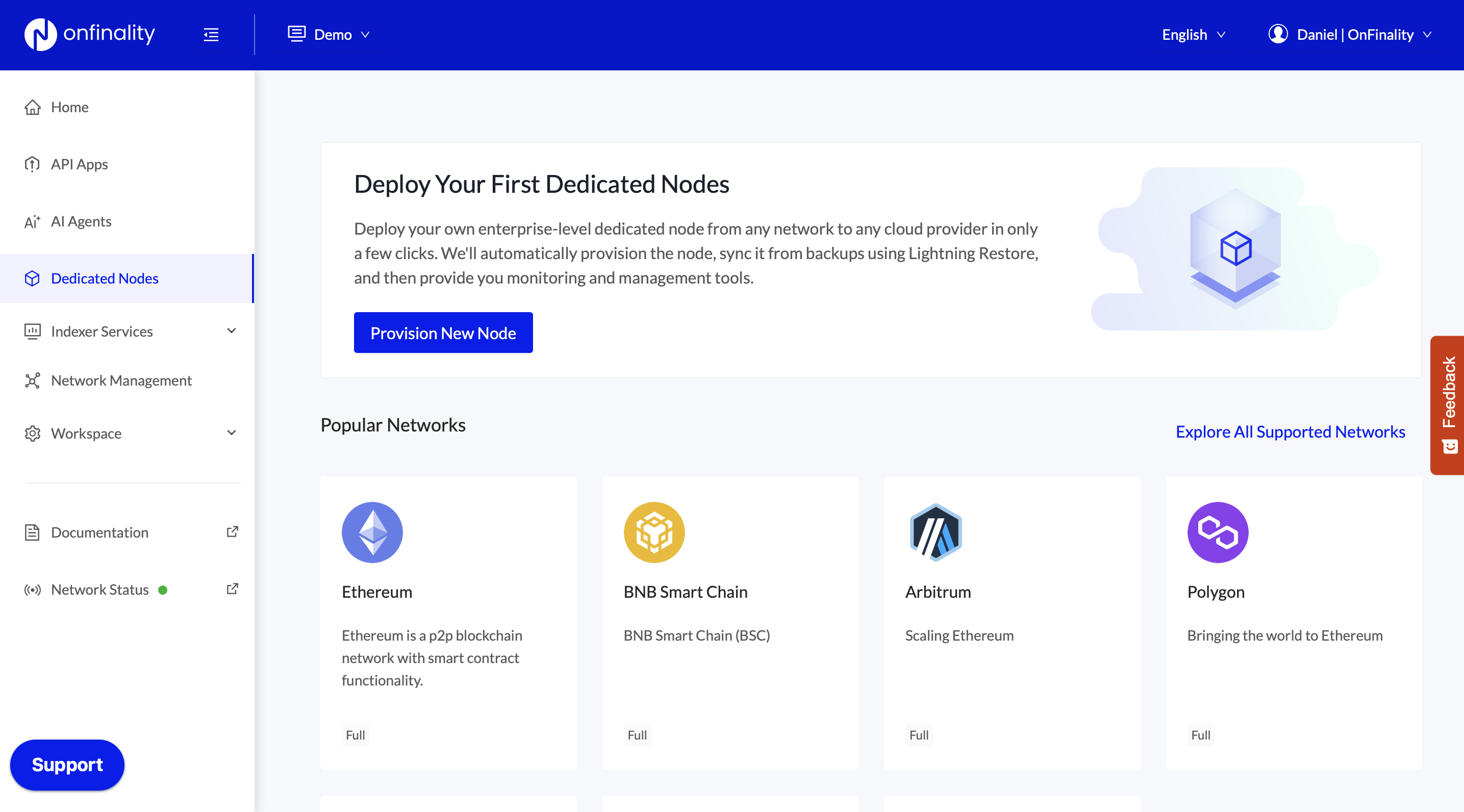
Login to your OnFinality account and go to the Dedicated Nodes page. Here click on Provision New Node in the centre of your screen.
Select a Network
The first page will allow you to select what network you want to create a new node in. This list will show both public networks that OnFinality supports, and also any private or custom network that you've already added. Today we're going to create a Bittensor node, so we'll click on Bittensor.
Use the search bar to quickly find a network
Configure your New Node
This step allows you to enter the various settings that you want your node to be created with. You can enter a memorable name and select the node type and deployment location.
In this example, we are running a Bittensor Archive node in North Virginia with Lightning Restore.
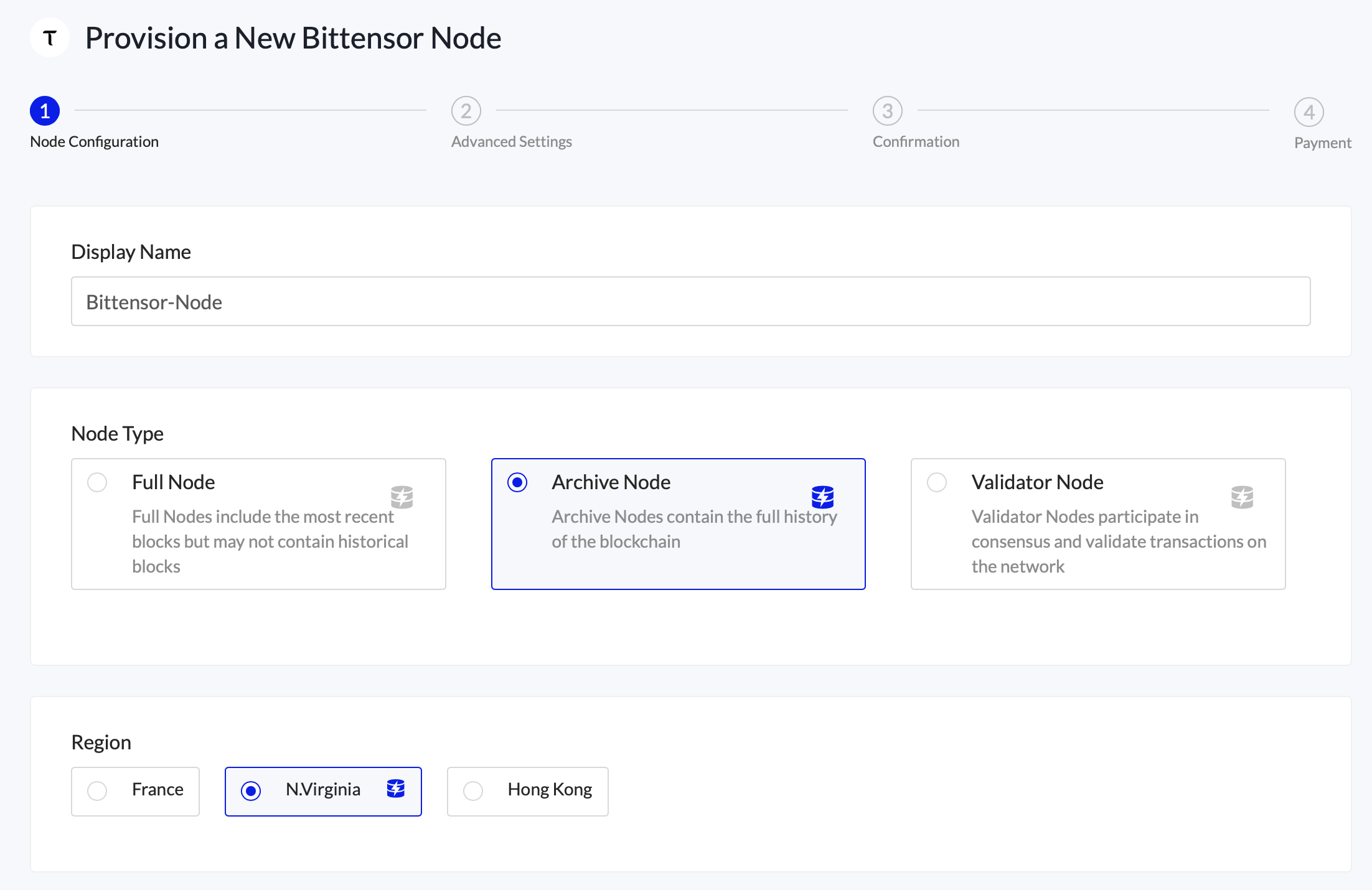
Look out for the Lightning Restore icon for a faster launch
Node Service & Configuration
Select Self Service if you intend to manage the node yourself or need it urgently.
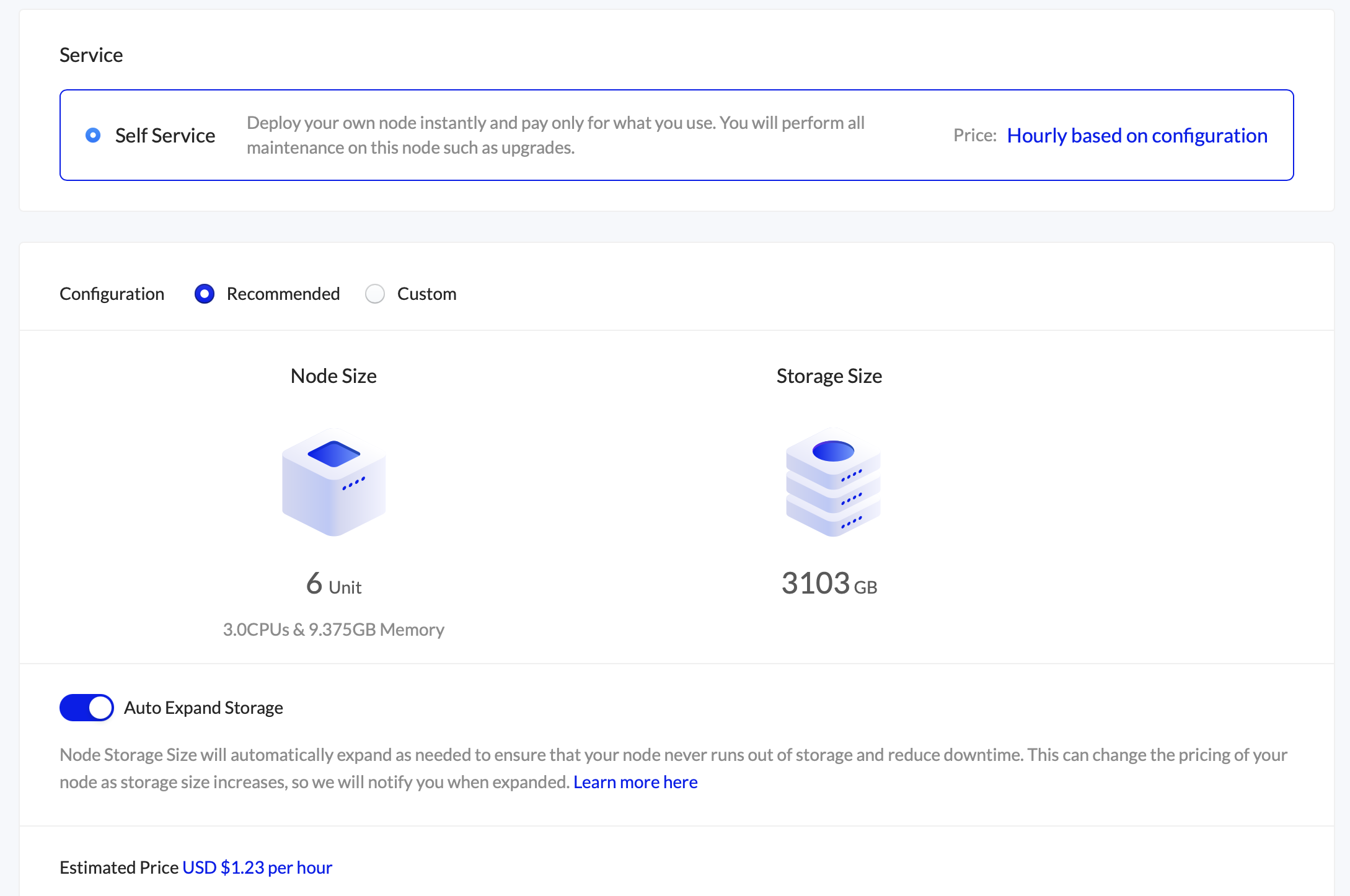
We strongly suggest following the Network’s recommended Configuration if your node is going to be used for any production workloads
To change the configuration select “Custom” and select the required Image Version, Node Size and Storage Size.
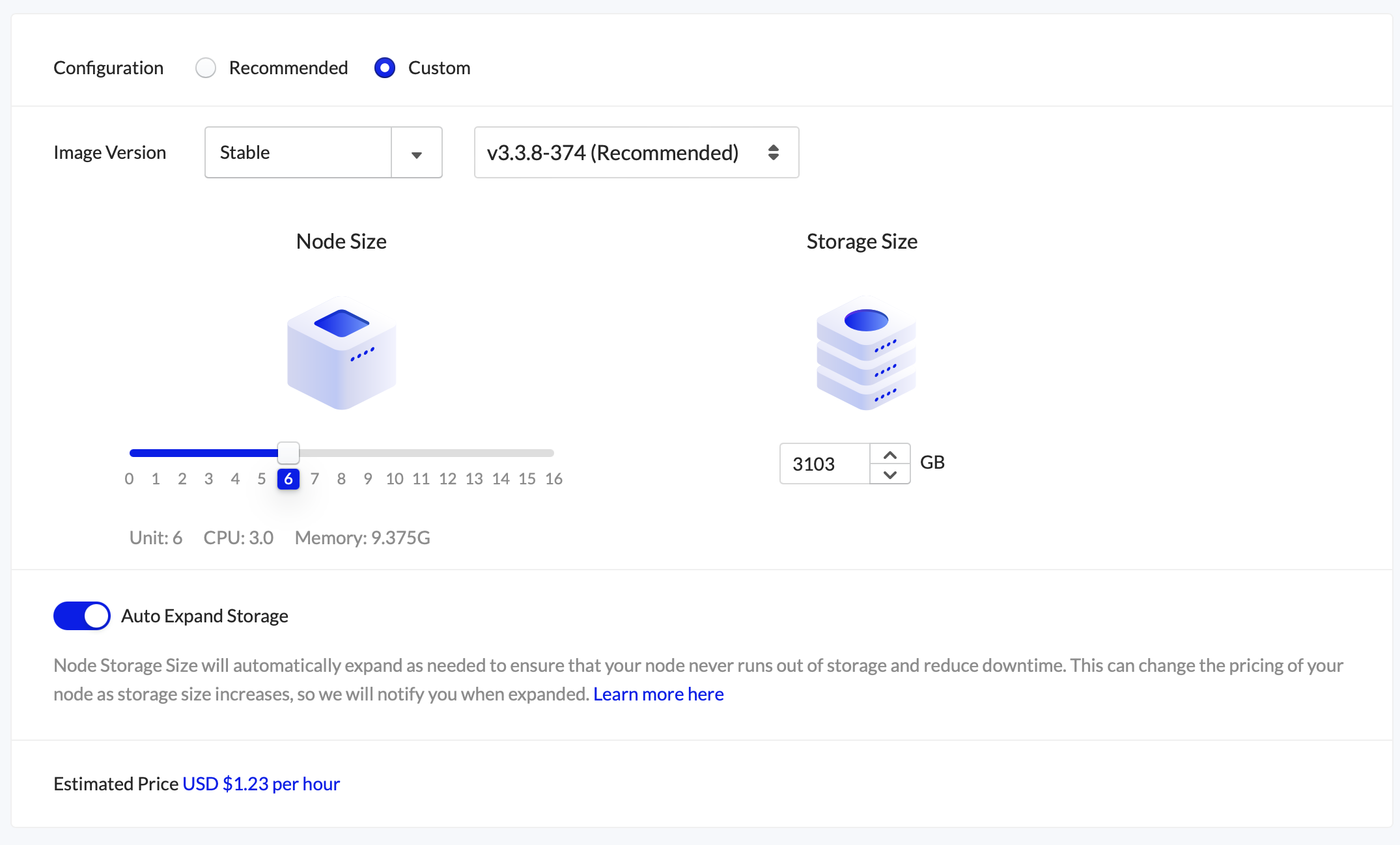
The Estimated Price of running this node for an hour will be updated as you change the Node Size or Storage Size
You should consult the network's own documentation for minimum sizes and best practices
Now that we've configured our new node, click Next.
Launch Configuration
Here, you can make any necessary changes to the node’s launch arguments and environment rules. The default arguments are enough for standard use, refer to the Network’s documentation for details about each argument.
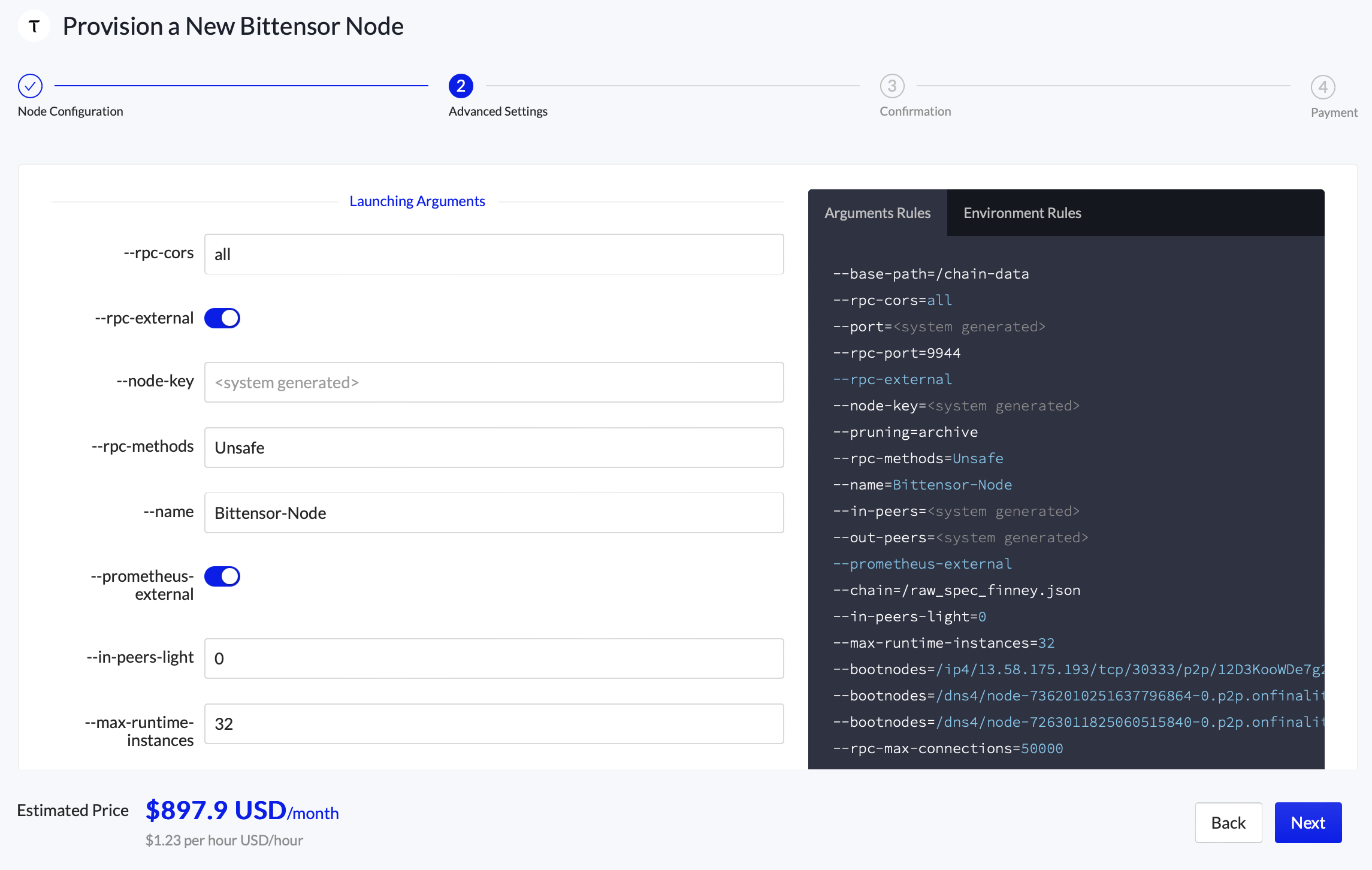
Learn more about configuring launch arguments here
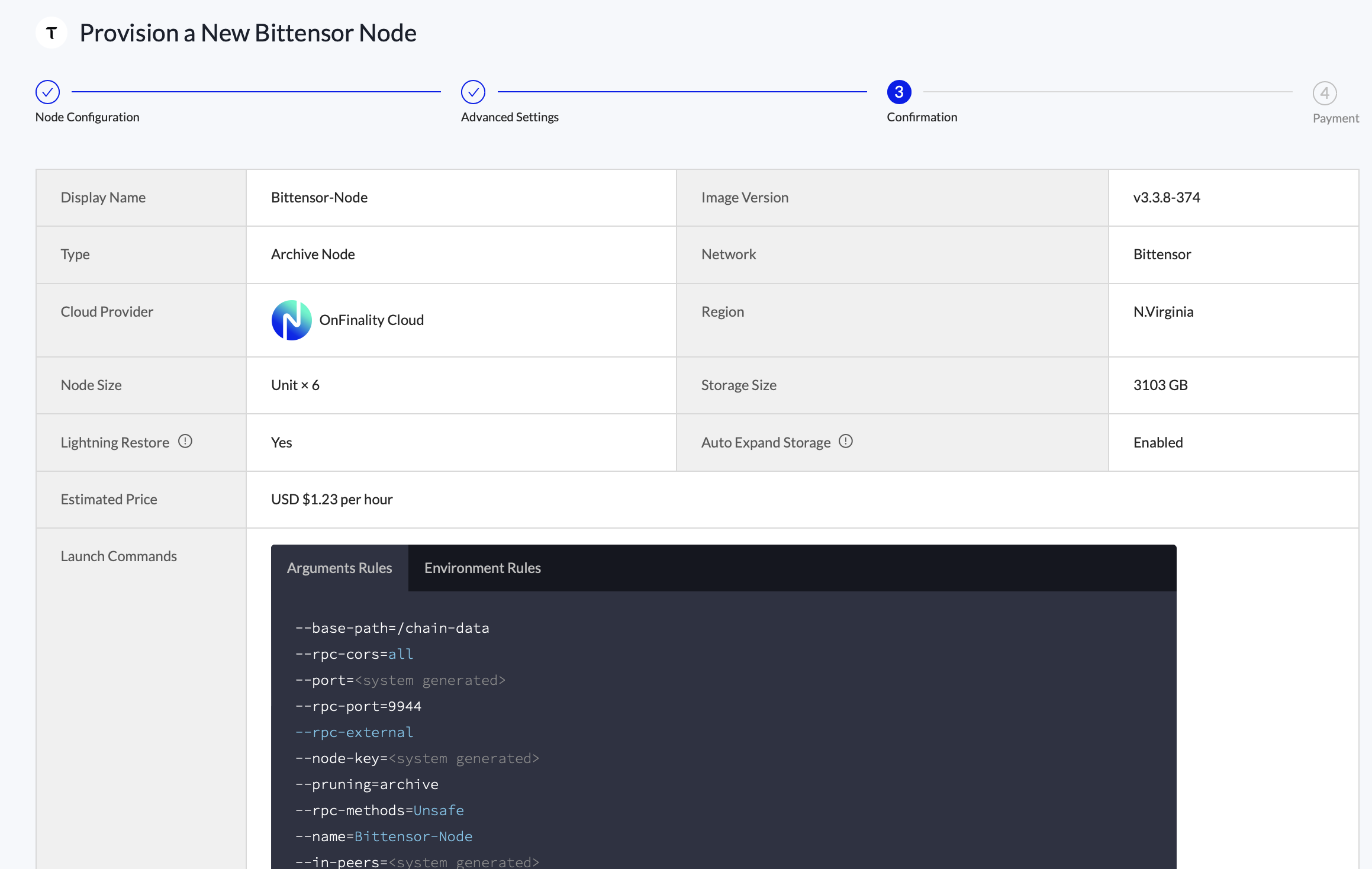
Review your New Node
The last step shows you all the settings about your new node, you can go back to change any details or click Create Node to provision your new Bittensor node
Select Billing Method
Select your billing method for this node using the checkbox provided and then click Create Node.
Your credit card will automatically be billed at the end of each month with the running costs of your new node, and you'll receive an itemised invoice via email.
If you haven't already added billing details to your account and you're not on a Partner plan you'll need to add a credit card. Click Add New Credit Card and enter your details on the secure popup.
If your account already has a Default Credit Card configured this step will be skipped and the charges will be included in your regular monthly bill against that card.
Congratulations, now go and build your dApp!
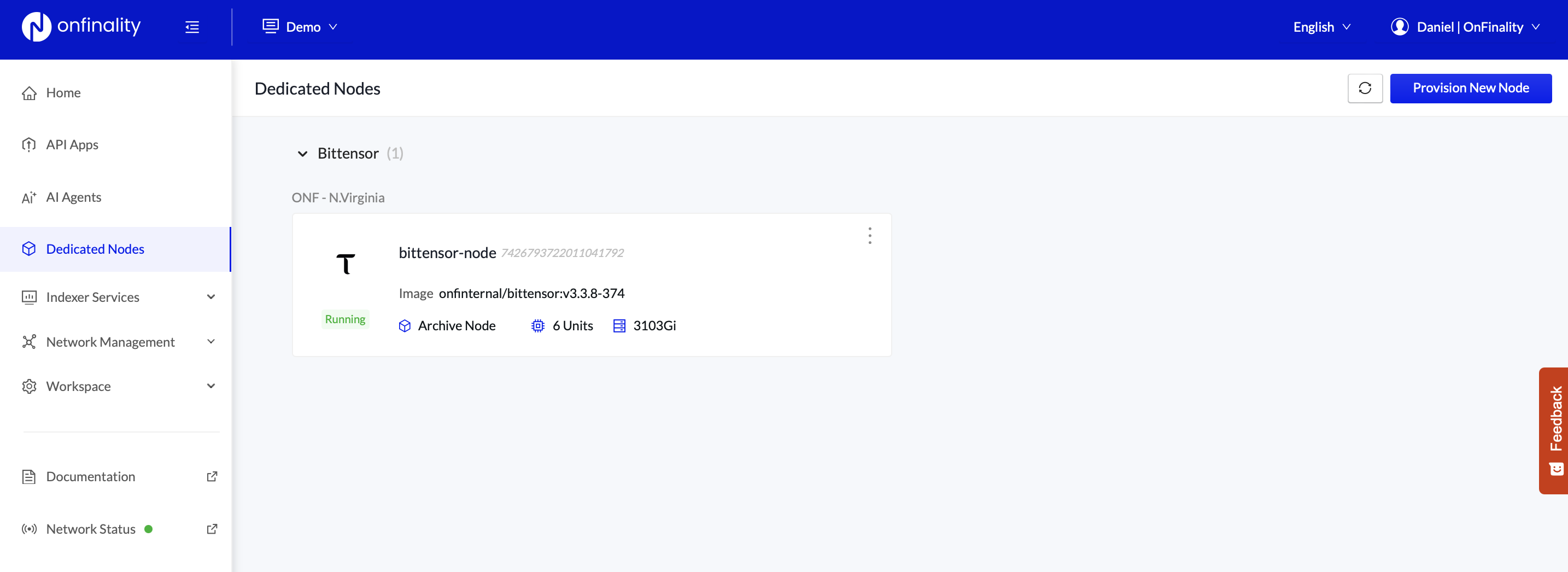
Back on your Nodes list, you'll see your new node appear. It will take a few minutes to initialise but you can click on it to view its details.